|
1) Download the update file using the link below. When prompted, choose "Save" or "Save to disk." The
easiest thing to do is to save the file to your Windows desktop.
Click here to download the update file.
|
|
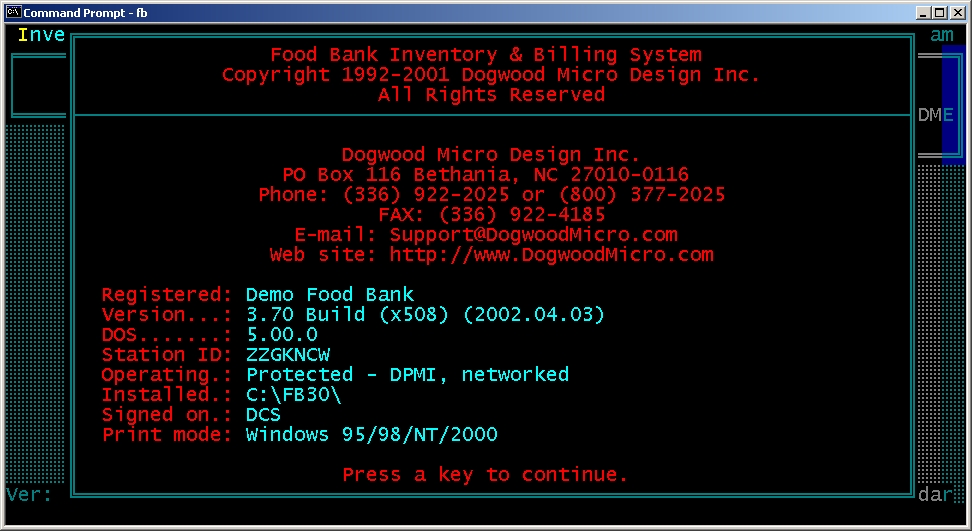
2) Be sure you know the name of the folder where your current version is installed. If you don't know the folder name, start
the program, go to the "Help" menu, choose "About" and note the folder name beside the "Installed"
header.
|
|
3) If you are on a network, be sure no one is using the food bank system. The update WILL FAIL is someone is using the program
when you try to install the update.
Some users have discovered that their network server will not "let go" of the program even after all users have
signed out of the system, and the update will not be successful even if no error is displayed. The fool-proof way around this
problem is to shut down and restart the server before trying to apply the update.
|
|
4) Find the file you downloaded (FBV377.EXE). If you downloaded to your desktop, you should see its icon on your desktop.
Double click the icon to start the update. You will see a welcome screen. Click "Next" to continue.
|
|
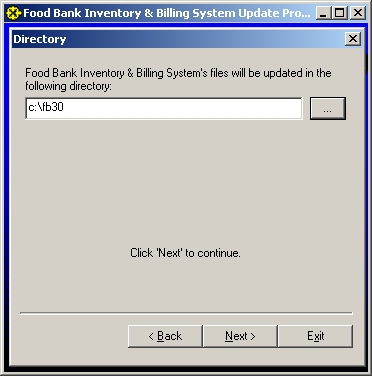
5) When prompted, enter the name of the folder where the current system is installed. You can click on the icon beside the
folder name to help select the proper folder. Click "Next" to continue.
|
|
6) Click "Start" to begin the update process. You'll see a progress bar as the update is installed, then a message
that the update is complete. That's it!
|
|
7) If you have multiple copies of the program installed, be sure to apply the update to ALL copies of the program!
|
|
8) Once the update is complete, you can drag the downloaded file FBV377.EXE to the recycle bin.
|